
What Happens to Your Data When You Factory Reset a Device

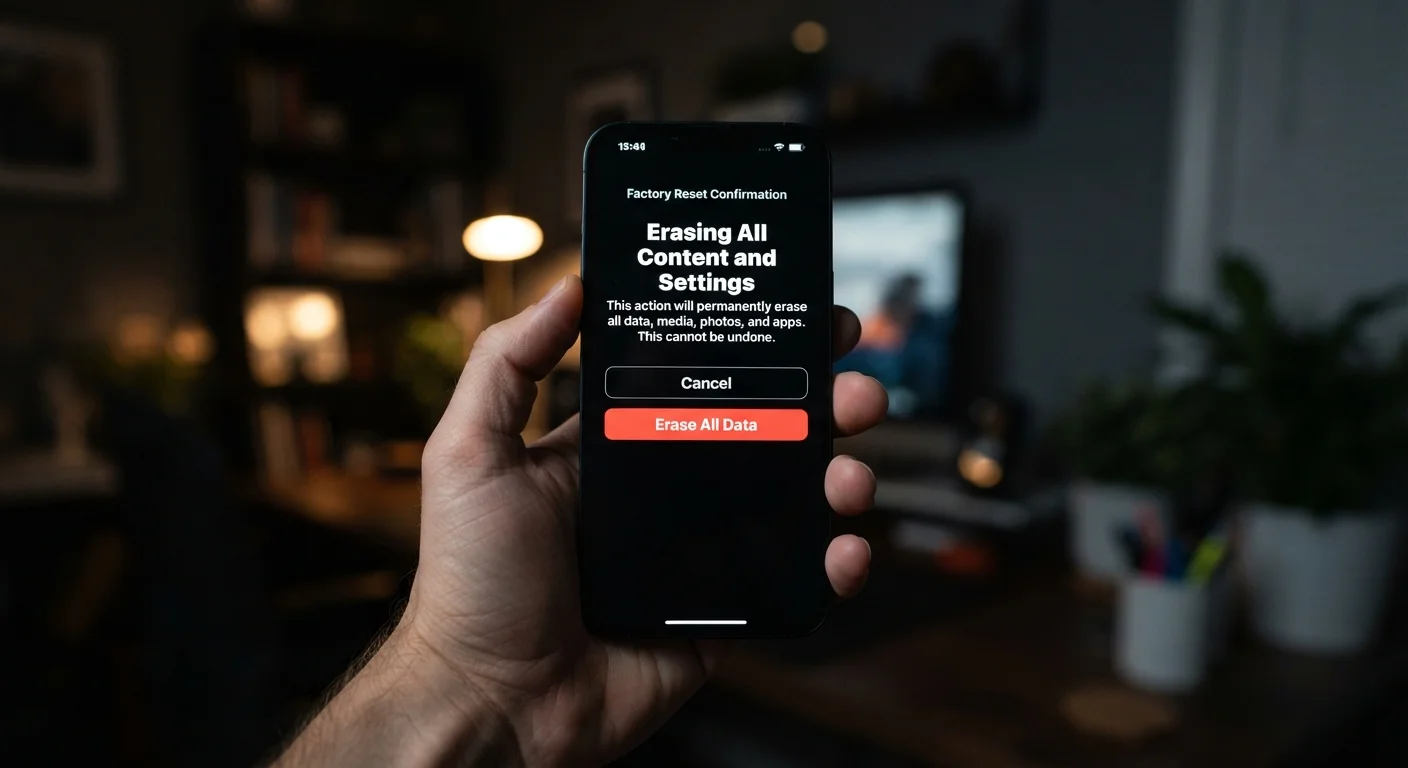
Photo: ShortwebArticles.com | Content For The Curious editorial
Key Takeaways
- A factory reset removes your accounts and apps but may not permanently destroy your data.
- On older Android devices without hardware encryption, recovery of reset data is possible with forensic tools.
- Modern iPhones and many newer Android phones use encryption that makes reset data practically unreadable.
- SSDs and flash storage (used in phones and most modern laptops) behave differently from old spinning hard drives.
- Extra steps — like enabling encryption before resetting — significantly reduce the risk of data recovery.
- Always back up what you need and verify the reset was complete before giving a device away.
What a Factory Reset Actually Does
When you tap "Factory Reset," the device wipes your personal accounts, installed apps, saved passwords, and customized settings. What you see afterward is a clean setup screen — the same experience a new owner would get out of the box. That's the visible layer of what a reset does.
Under the hood, the story is more nuanced. Most devices don't immediately overwrite every physical storage location that held your data. Instead, they delete the file system index — essentially the table of contents that tells the operating system where to find each file. The data itself may still sit on the storage chips, invisible to normal use but potentially accessible through forensic recovery tools.
Think of it like tearing the index pages out of a library book. The chapters are still there — they're just harder to find without the index.
Cloud Data Is Not Affected by a Reset
Why Encryption Changes Everything
Encryption is the key variable that determines how safe a factory reset really is. When a device encrypts its storage, every file is scrambled using a cryptographic key. Without that key, the data is essentially unreadable gibberish — even if someone uses recovery software.
On modern iPhones, hardware encryption has been the default since 2010. When you reset an iPhone, the device destroys the encryption key, which permanently locks out access to any remaining data on the chip. Apple's design makes recovery practically impossible for consumer-level tools.
For Android phones, the picture varies. Devices running Android 6.0 (Marshmallow) and later are required to support encryption, and many manufacturers enable it by default. However, older Android devices — particularly budget models — may not have encryption turned on. If you're resetting an older Android phone, it's worth verifying your encryption status in Settings under Security before proceeding.
~80%
Android devices shipping with encryption enabled
According to Google's Android security reports, the majority of active Android devices in recent years ship with encryption enabled by default, though this varies significantly across device age and price tier.
2010
Year Apple introduced hardware encryption on iPhones
Apple has included hardware-level AES encryption on iPhones since the iPhone 3GS, making encryption a baseline feature for over a decade of iOS devices.
How Laptops and Computers Differ
Desktop and laptop storage adds another layer of complexity. Older machines with traditional spinning hard disk drives (HDDs) can be more thoroughly wiped using software tools that overwrite every sector with random data — a process sometimes called a "secure erase" or "multi-pass wipe." This is more reliable than a simple reset.
Modern laptops increasingly use solid-state drives (SSDs), which work similarly to smartphone flash storage. SSDs manage data writing in ways that can make traditional overwriting less predictable. For SSDs, the most reliable approach is to use the manufacturer's own secure erase utility or to rely on full-disk encryption combined with a standard reset.
Windows 10 and 11 include a reset option labeled "Remove everything" with a secondary choice to "Clean the drive fully" — this slower option does a better job of overwriting data and is worth selecting when handing off a PC.
Choose 'Clean the Drive Fully' on Windows
What Stays Behind After a Reset
Even after a thorough reset, certain information may remain intact in places that the reset process doesn't touch:
- Cloud accounts: Photos, contacts, emails, and documents synced to Google, iCloud, Microsoft, or other services are unaffected by a device reset. You'll need to manage those accounts separately.
- External storage: SD cards or external USB drives connected to a device are typically not wiped by a factory reset — you need to format them independently.
- Account credentials on third-party services: Resetting a device does not log you out of apps on other devices or revoke access tokens that were issued to the device.
If you're preparing a device to pass along to someone else, addressing these areas is just as important as the reset itself. Our step-by-step checklist for safely handing off a device walks through each of these points in detail.
Steps That Make a Reset More Thorough
A standard factory reset is generally adequate for most everyday situations — retrieving a forgotten passcode, fixing software problems, or preparing a well-encrypted modern phone for resale. But when the stakes are higher, a few extra steps significantly reduce data exposure risk:
- Enable encryption before resetting (if it isn't already on). On Android, look under Settings → Security → Encryption. iPhones encrypt by default when you set a passcode.
- Sign out of all accounts before initiating the reset. This deauthorizes the device at the account level, not just locally.
- Format external storage separately. Remove any SD cards and format them independently.
- On laptops, choose the thorough wipe option when available, or use a manufacturer-provided secure erase tool for SSDs.
No method offers absolute certainty against a determined, well-resourced adversary, but for the vast majority of consumers in everyday situations, encrypted devices plus a proper factory reset represents a solid, practical standard.
Frequently Asked Questions
The content on this site is for informational purposes only and is not a substitute for professional advice. Always consult a qualified professional for guidance specific to your situation.