
Placing Your Router for Whole-Home Coverage

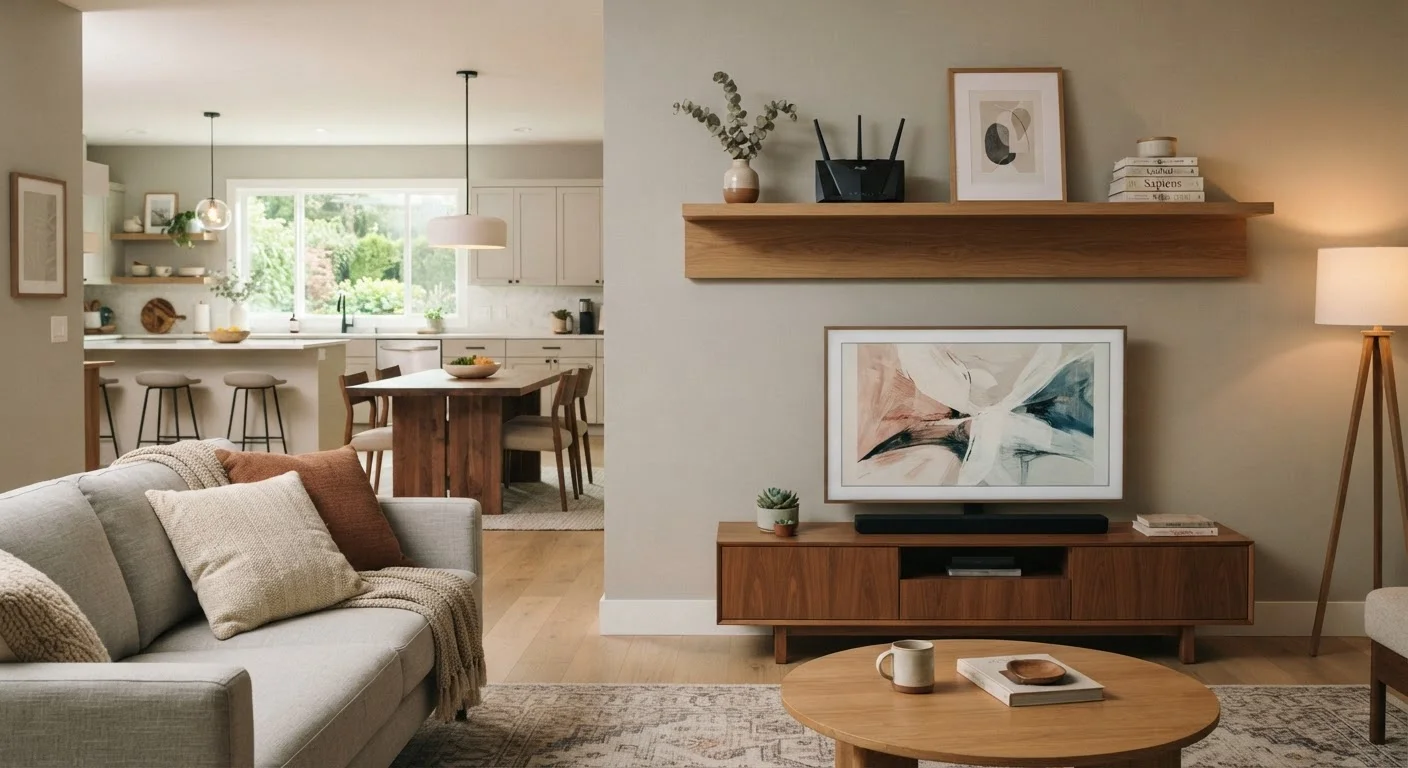
Photo: ShortwebArticles.com | Content For The Curious editorial
Key Takeaways
- Router placement is one of the highest-impact, lowest-cost ways to improve whole-home Wi-Fi coverage.
- Central, elevated, and open placement consistently outperforms closets, corners, and floor-level spots.
- Physical obstructions like concrete walls and large appliances block or degrade wireless signals significantly.
- The 5 GHz band offers faster speeds but shorter range; 2.4 GHz travels farther but more slowly.
- If placement alone cannot eliminate dead zones, a mesh system or Wi-Fi extender may be the next step.
Why router placement matters more than most people think
Most households focus on their internet plan's speed tier when troubleshooting slow Wi-Fi — but the router's physical location is often the bigger bottleneck. A high-speed plan delivered to a router tucked in a corner closet will still underperform a modest plan with a well-positioned router. If you're new to how home networks work, this beginner's orientation to home internet covers the full picture before you dive into optimization.
Wi-Fi signals travel outward from the router like ripples in a pond. Every wall, floor, appliance, and piece of furniture those ripples pass through weakens them. The goal of strategic placement is to minimize the obstacles between the router and your devices — particularly in the rooms where you spend the most time online.
It's also worth understanding the two common Wi-Fi frequency bands. The 2.4 GHz band travels farther and passes through walls more easily, but offers lower maximum speeds. The 5 GHz band delivers faster throughput but has a shorter effective range. Most modern routers broadcast both simultaneously (called dual-band), so placement affects each band differently. Common assumptions that quietly slow your network explores how band selection and other overlooked factors interact with placement.
What you will need
What you'll need
Router repositioning is one of the few meaningful network upgrades that costs nothing if you already have an Ethernet cable long enough to reach a better location. Here's what to gather before you start.
Router
The device that broadcasts your Wi-Fi signal — what you'll be repositioning.
Ethernet cable (longer run)
Lets you move the router away from the modem while keeping a wired connection between the two.
Wi-Fi analyzer app
Shows real-time signal strength throughout your home so you can measure improvement after each placement.
Shelf, bookcase, or wall mount
Elevating the router off the floor improves signal propagation in all directions.
Map your home's dead zones before you move anything
Walk through each room and note where your device loses bars or struggles to stream. Pay attention to corners, rooms farthest from the current router location, and areas behind thick walls. Take a quick photo or sketch a simple floor plan — even a rough one on paper helps you visualize the problem systematically.
Identify the most central location in your home
Wi-Fi signals radiate outward in all directions from the router. If the router sits at one end of the house, half that signal is wasted pushing into the exterior wall. Draw an imaginary center point on your floor plan — that area is your target zone. For multi-story homes, a central location on the main floor (or between floors if possible) usually covers the most square footage.
Get the router off the floor and out of enclosed spaces
Floors, cabinets, and closets are among the worst places for a router. Signals lose strength passing through floors, and enclosed spaces block them further. Aim for a shelf, bookcase top, or wall-mounted position at desk height or above. The antennas on most routers are designed to broadcast horizontally when the router is upright, so keep it in its intended orientation.
Move away from signal-blocking obstacles
Not all walls are equal. Drywall causes minimal interference; concrete, brick, and plaster walls absorb significantly more signal. Large metal objects — refrigerators, filing cabinets, metal shelving — reflect and scatter Wi-Fi. Microwave ovens and some cordless phones can also interfere with the 2.4 GHz band. Reposition the router so that as few of these obstacles as possible sit between it and the rooms you use most.
Run a longer Ethernet cable if needed to reach the ideal spot
Many people place their router wherever the ISP technician installed the modem — often a corner of a basement or a back bedroom. You are not stuck there. A standard Ethernet cable can run up to about 328 feet (100 meters) without signal loss, so you have meaningful flexibility. Route a longer cable through a closet, along a baseboard, or through a wall if you're comfortable doing so, and position the router centrally. See how modems and routers differ if you're unsure which device stays put and which you're moving.
Test signal strength and fine-tune the position
After repositioning, walk the same route you mapped in Step 1 and note signal readings. Small adjustments — rotating the router a few inches, angling external antennas, or trying a nearby shelf — can make a measurable difference. If one dead zone persists, check whether it's caused by a structural obstacle that no single-router placement can overcome.
When placement alone isn't enough
Some homes — especially those with thick masonry walls, long narrow layouts, or multiple floors — present genuine coverage challenges that no single router location can fully solve. If you've followed every step above and still have persistent dead zones, your options include a Wi-Fi range extender (which amplifies an existing signal, with some trade-offs) or a mesh network system (which uses multiple nodes to create a unified network). Mesh Wi-Fi systems come with trade-offs worth understanding before you spend money on new hardware.
Whatever direction you go, start with placement — it's free, takes less than an hour, and frequently resolves problems that people assume require new equipment. For a broader look at every factor shaping your home connection, see everything that shapes your home internet experience.
Keep Your Router Secure After Repositioning
The content on this site is for informational purposes only and is not a substitute for professional advice. Always consult a qualified professional for guidance specific to your situation.