
Home Internet From the Ground Up: A Beginner's Orientation

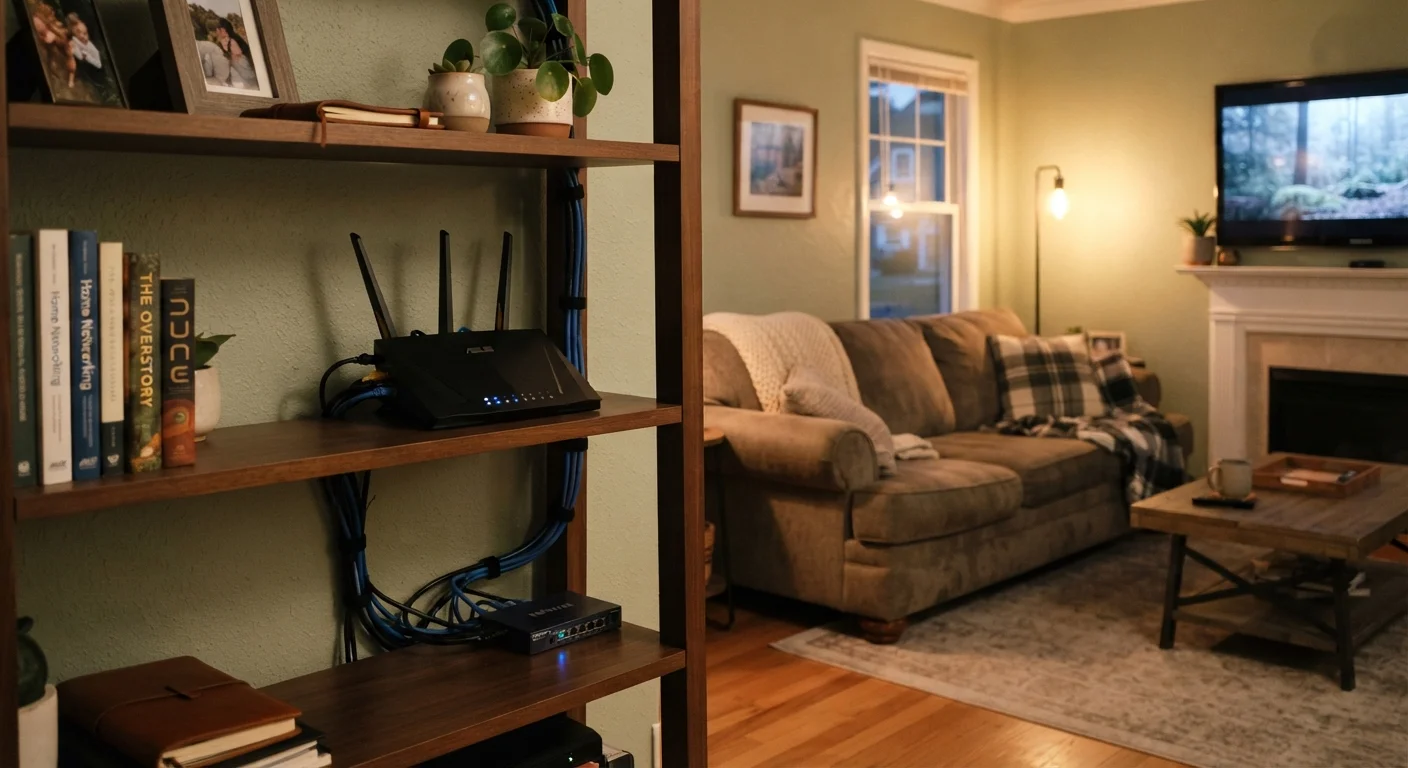
Photo: ShortwebArticles.com | Content For The Curious editorial
Key Takeaways
- Your modem connects your home to the internet; your router shares that connection with devices.
- Wi-Fi speed depends on both your plan and where you place your router.
- Different connection types (fiber, cable, DSL) deliver meaningfully different speeds and reliability.
- Changing your default router password is one of the most important setup steps.
- Most internet problems can be diagnosed and often fixed without calling support.
How Home Internet Actually Works
Think of home internet as a two-part delivery system. First, your Internet Service Provider (ISP) — the company you pay each month — runs a physical signal to your home through a cable buried underground, a phone line, or a fiber-optic wire. That signal carries raw internet data, but your devices can't use it yet. A piece of hardware called a modem translates that signal into something your home network understands. From there, a router takes over, sharing the connection wirelessly (Wi-Fi) or through ethernet cables to every device in the house.
Data travels in both directions simultaneously. When you load a webpage, your device sends a request outward (upload), and the server sends the page back to you (download). ISPs advertise speed in Mbps (megabits per second) — the higher the number, the faster data moves. For a deeper look at every factor shaping this experience, see our end-to-end home internet guide.
ISP
Internet Service Provider — the company that sells you internet access and delivers the physical connection to your home.
Modem
A device that translates the signal from your ISP into data your home network can use. It's the bridge between the outside internet and your home.
Router
A device that creates a local network in your home and distributes the internet connection to all your devices via Wi-Fi or ethernet cables.
Bandwidth
The maximum amount of data that can travel through your connection at once. More bandwidth means more devices can do more things simultaneously without slowing each other down.
Latency
The delay between sending a request and receiving a response. Low latency is especially important for video calls and online gaming.
Ethernet
A physical cable that connects a device directly to a router or modem, typically delivering a faster and more stable connection than Wi-Fi.
The Hardware: Modem, Router, and More
Understanding your equipment takes the mystery out of troubleshooting. Here's what each piece does:
- Modem: Connects your home to the ISP's network. It has one cable coming in from outside and one cable going out to your router.
- Router: Creates your home's local network. It assigns each device a unique local address and manages traffic so everything gets the data it asked for.
- Gateway (combo unit): A single device that handles both modem and router functions. Many ISPs provide one as a rental.
- Wi-Fi extender or mesh node: Rebroadcasts your Wi-Fi signal to reach dead zones in larger homes.
Where you place your router matters enormously. A router tucked in a closet or basement will deliver a much weaker signal than one placed centrally, elevated, and away from microwaves or cordless phones. Common placement mistakes are among the easiest fixes for a slow network.
Central Placement Makes a Real Difference
Choosing a Connection Type
Not every connection type is available in every location, and the technology behind them affects both speed and reliability.
| Type | How it works | Typical speed range |
|---|---|---|
| Fiber | Light through glass cables | Very fast, often symmetrical upload/download |
| Cable | Coaxial TV infrastructure | Fast downloads, slower uploads |
| DSL | Existing phone lines | Moderate; degrades with distance from provider hub |
| Fixed wireless | Radio tower to home antenna | Variable; depends on signal clarity |
| Satellite | Orbiting satellites | Available anywhere, higher latency |
Fiber is widely considered the most reliable option where available, offering consistent speeds in both directions. Cable is the most common alternative in suburban areas. DSL can be sufficient for lighter usage but may struggle with multiple simultaneous users. If you're weighing these options alongside other home decisions, planning your home infrastructure early can save headaches later.
Availability Varies by Location
Setting Up and Staying Secure
Once your modem and router are connected and powered on, most modern routers walk you through setup via a smartphone app or a web-based interface you access by typing the router's IP address into a browser. During setup, prioritize these steps:
- Change the default admin password on your router immediately. Default passwords are publicly known and easy for others to exploit.
- Set a strong Wi-Fi password using WPA3 or WPA2 encryption (your router's settings will show this option).
- Name your network something that doesn't identify your address or personal information.
- Enable automatic firmware updates if your router supports them, so security patches apply without manual effort.
Security doesn't stop at the router. The devices connected to your network also need attention. For broader guidance on protecting yourself online, our beginner's privacy guide covers browser settings, app permissions, and more. And if you're setting up new devices to connect, getting a new smartphone connected properly is a natural next step.
Never Skip the Default Password Change
Frequently Asked Questions
The content on this site is for informational purposes only and is not a substitute for professional advice. Always consult a qualified professional for guidance specific to your situation.