
Online Privacy for Beginners: Taking Back Control of Your Personal Data

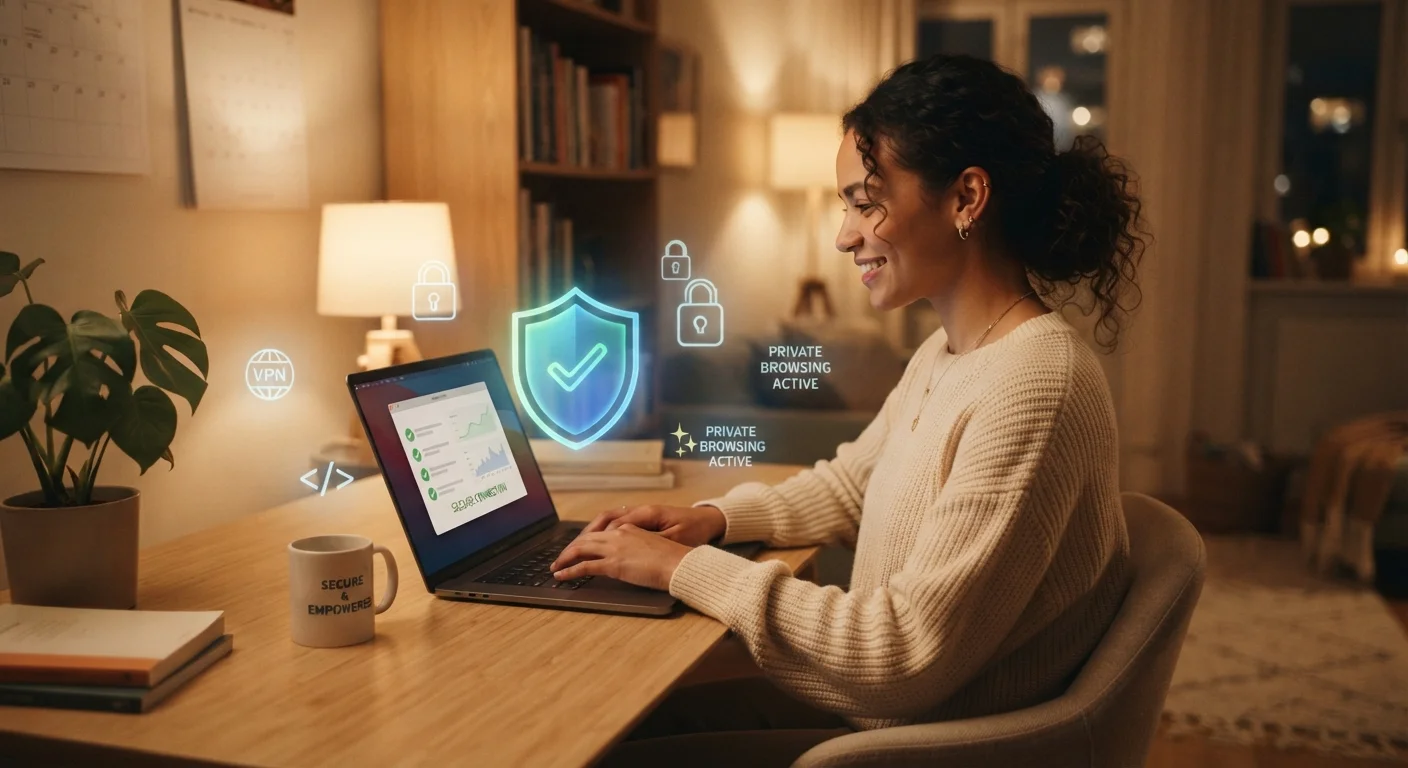
Photo: ShortwebArticles.com | Content For The Curious editorial
Key Takeaways
- Online privacy is about limiting who can collect, store, and share your personal information.
- Your browser, search engine, and app settings all affect how much data you expose by default.
- Changing a few key settings takes minutes and meaningfully reduces your data exposure.
- Strong, unique passwords and two-factor authentication are among the most effective protections available.
- Privacy is an ongoing practice, not a one-time fix — small habits add up over time.
What Online Privacy Actually Means
Online privacy isn't about having something to hide — it's about having the right to decide who sees your information and how it's used. Every time you browse a website, use an app, or sign up for a service, data about you is being generated. The question is whether that data stays with you, gets shared with advertisers, or ends up somewhere you never intended.
For most people, the concern isn't one dramatic event — it's the slow accumulation of data about their habits, location, interests, and identity. That data shapes the ads you see, the prices you're shown, and in some cases, decisions made about you by institutions you've never interacted with directly.
Digital footprint
The trail of data you leave behind whenever you use the internet — including sites visited, searches made, and information submitted in forms.
Third-party cookies
Small files placed on your device by advertisers or other companies other than the site you're visiting, used to track your behavior across multiple websites.
Data broker
A company that collects personal information from multiple sources and sells or licenses it to other businesses, often without your direct knowledge.
Two-factor authentication (2FA)
A login security method that requires both your password and a second form of verification — like a code sent to your phone — before granting account access.
VPN (Virtual Private Network)
A service that encrypts your internet connection and routes it through a server elsewhere, making it harder for others on your network or your ISP to see your activity.
App permissions
Settings that control what device features — like your camera, location, or contacts — an app is allowed to access.
The good news: you don't need a technical background to take meaningful control. The steps in this guide are practical and approachable, and each one makes a real difference.
Your Digital Footprint: The Invisible Trail You Leave
Every search query, clicked link, and filled-out form contributes to what's called your digital footprint — a record of your online activity that can be surprisingly detailed. For a deeper look at how this works, see Your Digital Footprint: What You Leave Behind Every Time You Go Online.
Footprints come in two types. Your active footprint includes things you deliberately share — posts, account registrations, and form submissions. Your passive footprint is collected without your direct input: the device you use, your approximate location, how long you linger on a page, and which ads you scroll past.
Advertisers, data brokers, and some employers can access pieces of this trail. Understanding that it exists is the first step toward managing it.
Browser and Search Settings Worth Changing
Your web browser is the gateway to almost everything you do online, and its default settings aren't always set with your privacy in mind. A few targeted changes can significantly limit the data collected about your browsing.
- Enable "Do Not Track" in your browser's privacy settings. While not all sites honor this signal, it costs nothing to turn on.
- Block third-party cookies. Most major browsers now offer this option. Third-party cookies allow advertisers to follow you across sites you've never directly visited.
- Use a privacy-respecting search engine. Some search engines build their business on not storing your search history or linking it to a personal profile.
- Consider a browser extension that blocks trackers. Well-established, open-source options are widely available and easy to install.
Start With One Browser Change
If you use your home internet connection, your internet service provider can also see your browsing activity at the network level. Our guide on factors that shape your home internet experience covers the broader landscape of how your connection interacts with your data.
App Permissions: What You're Agreeing To
When you install an app and tap "Allow," you may be granting access to your microphone, camera, contacts, location, or photo library — sometimes all at once. Many apps request far more access than they need to function.
Both Android and iOS allow you to review and revoke permissions at any time through your phone's settings. It's worth doing a permission audit on apps you already have installed, not just new ones.
- Location: Set apps to "only while using" rather than "always" unless there's a clear reason they need your location in the background.
- Contacts and photos: Restrict access to apps where it's genuinely necessary. Many apps that request contacts access do so to build social graphs for advertising.
- Microphone and camera: Limit these to apps where the function is core — video calls, voice memos — and deny access to apps where it makes no obvious sense.
Permission Prompts Reset After App Updates
Passwords, Accounts, and Staying Secure
Weak or reused passwords remain one of the most common entry points for unauthorized access to personal accounts. A strong password is long, unique to each account, and avoids obvious patterns like birthdays or common words.
A password manager generates and stores complex passwords for you so you only need to remember one master password. This is one of the highest-impact changes most people can make with minimal effort.
Equally important is two-factor authentication (2FA), which requires a second confirmation — typically a code sent to your phone or generated by an app — when you log in. Enable it on your email account first, since email is often used to reset all your other passwords.
If you're ever notified that your data may have been part of a breach, act quickly. Our guide on recovering after a data breach walks through the immediate steps to take.
Next Steps on Your Privacy Journey
Privacy isn't a destination — it's a set of habits that compound over time. Once you've covered the basics above, there are natural next areas to explore.
Social media platforms are among the largest collectors of personal data, and most ship with settings that favor broad data sharing. Social Media Privacy Settings Most People Never Touch covers the specific toggles worth finding on major platforms.
If you're new to how home networks work — including how your router and devices interact with the broader internet — Home Internet From the Ground Up is a useful companion read.
Finally, if you use a laptop as your primary device, Everything a First-Time Laptop Owner Needs to Know includes practical security habits alongside general setup guidance.
Electronic Frontier Foundation (EFF) – Surveillance Self-Defense
A free, regularly updated guide from a nonprofit digital rights organization covering privacy tools and practices for everyday users, from basic to advanced.
Have I Been Pwned
A free tool that lets you check whether your email address has appeared in known data breaches, helping you prioritize which accounts to secure first.
Privacy Badger (EFF)
A browser extension developed by the Electronic Frontier Foundation that automatically learns to block invisible trackers based on their behavior rather than a static list.
Privacy tools and settings evolve, so it's worth revisiting your setup periodically — especially after major operating system or app updates, which can reset permissions or introduce new data-sharing options.
Frequently Asked Questions
The content on this site is for informational purposes only and is not a substitute for professional advice. Always consult a qualified professional for guidance specific to your situation.