
Everything a First-Time Laptop Owner Needs to Know

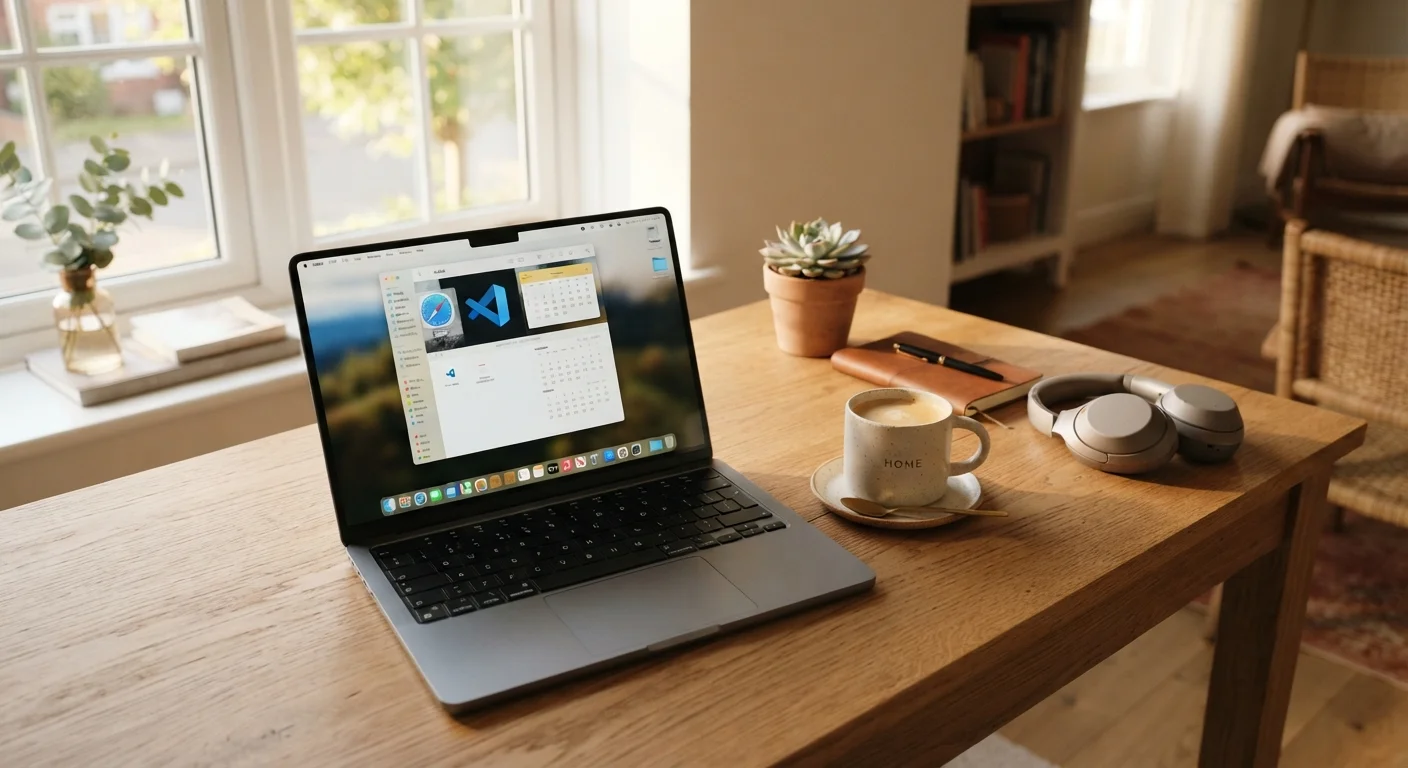
Photo: ShortwebArticles.com | Content For The Curious editorial
Key Takeaways
- Create a strong, unique password and a recovery account during initial setup — before anything else.
- Software updates patch security holes; keeping them current is one of the most impactful things you can do.
- Public Wi-Fi carries real risks; understand when to use it and when to wait for a trusted network.
- Simple habits — like shutting down regularly and keeping vents clear — meaningfully extend a laptop's lifespan.
- Back up your files from day one; data loss happens to everyone eventually.
Setting Up Your Laptop for the First Time
Unboxing a new laptop can feel overwhelming, but the initial setup process is guided and straightforward. The operating system — the software that runs everything — will walk you through creating a user account the first time you power on the machine.
During setup, prioritize these three things:
- Create a strong password for your user account. Use a mix of letters, numbers, and symbols — something you have not used anywhere else.
- Set up a recovery option, such as a backup email address or phone number, so you can regain access if you forget your password.
- Connect to your home Wi-Fi network. If you have not set up home internet yet, our beginner's guide to home internet explains how it all works from the router to your device.
Once you are in, let the laptop check for and install any available software updates before you do anything else. These updates often include critical security fixes.
Do Updates First, Everything Else Second
Understanding the Basics: What Every Part Does
You do not need to understand every component — but knowing a few core terms helps you make sense of what your laptop is telling you and what to ask when you need help.
Operating System (OS)
The core software that runs your laptop — examples include Windows and macOS. It manages everything from displaying the screen to running your apps.
RAM
Short for Random Access Memory, this is the temporary workspace your laptop uses to run programs. More RAM generally means smoother multitasking.
Storage (SSD / Hard Drive)
The permanent space where your files, photos, and apps are saved. SSDs (solid-state drives) are faster and more common in newer laptops than traditional hard drives.
Software Update
A package of improvements released by the software maker. Updates often fix security vulnerabilities alongside adding new features.
Phishing
A scam where someone disguises a harmful link or attachment as something legitimate — like a message from your bank — to trick you into giving away information.
Cloud Storage
A service that stores your files on remote servers accessible via the internet, so your data is not only on your local device.
Think of storage as your laptop's filing cabinet — it holds everything you save. Think of RAM as your laptop's desk — it determines how many things you can actively work on at once. When your desk is covered, things slow down. When the filing cabinet is full, you cannot save anything new.
Keeping Your Laptop Secure
Security does not require technical expertise — it mostly requires consistent habits. A few foundational steps make a significant difference.
- Keep your software updated. Updates are the single most impactful security measure for most users.
- Use unique passwords for every account. A password manager — a tool that stores and generates passwords — makes this practical without requiring you to memorize dozens of them.
- Enable your screen lock. Set your laptop to require a password or PIN after a few minutes of inactivity.
- Be cautious with email attachments and links. Phishing — where a scammer disguises a harmful link as something legitimate — is one of the most common ways people's devices get compromised.
For a deeper look at protecting your personal information online, see our guide on online privacy for beginners.
Reusing Passwords Creates Serious Risk
Day-to-Day Habits That Keep It Running Well
How you treat a laptop day-to-day has a direct impact on how long it lasts and how well it performs. These habits cost nothing and take very little time.
- Shut down or restart regularly, rather than leaving the laptop in sleep mode indefinitely. This clears system memory and applies updates.
- Keep vents unobstructed. Laptops vent heat from their sides or bottom. Using a laptop on a pillow or blanket can block airflow and cause the machine to overheat over time.
- Back up your files. Use an external drive, a cloud service, or both. Data loss — from a spill, a drop, or a hardware failure — is a matter of when, not if.
- Keep it clean. Dust the keyboard and screen regularly using a soft, dry cloth. Avoid eating or drinking directly over the keyboard.
For more detail on extending device lifespan, our article on keeping your devices running well for years covers charging, storage, and maintenance in depth.
Connecting to the Internet and Staying Safe Online
Most of what you do on a laptop will involve the internet. Understanding the difference between a trusted network and a risky one helps you make smarter decisions every day.
Your home Wi-Fi network — protected by your router's password — is your safest option for sensitive tasks like banking or shopping. Public Wi-Fi, such as at a café or airport, is unencrypted or minimally secured; avoid logging into financial accounts or entering passwords on those networks when possible.
HTTPS Encrypts the Connection, Not the Site
One clear sign a website is handling your data responsibly: the address bar shows https:// (with the 's') rather than http://. Browsers typically display a small padlock icon to indicate this. It does not make a site trustworthy in every sense, but it does mean your connection to that site is encrypted.
If you are planning to travel and want to use your laptop abroad, check our first international trip guide for practical information on staying connected and safe while traveling.
Frequently Asked Questions
The content on this site is for informational purposes only and is not a substitute for professional advice. Always consult a qualified professional for guidance specific to your situation.