
App Permissions That Are Worth a Second Look

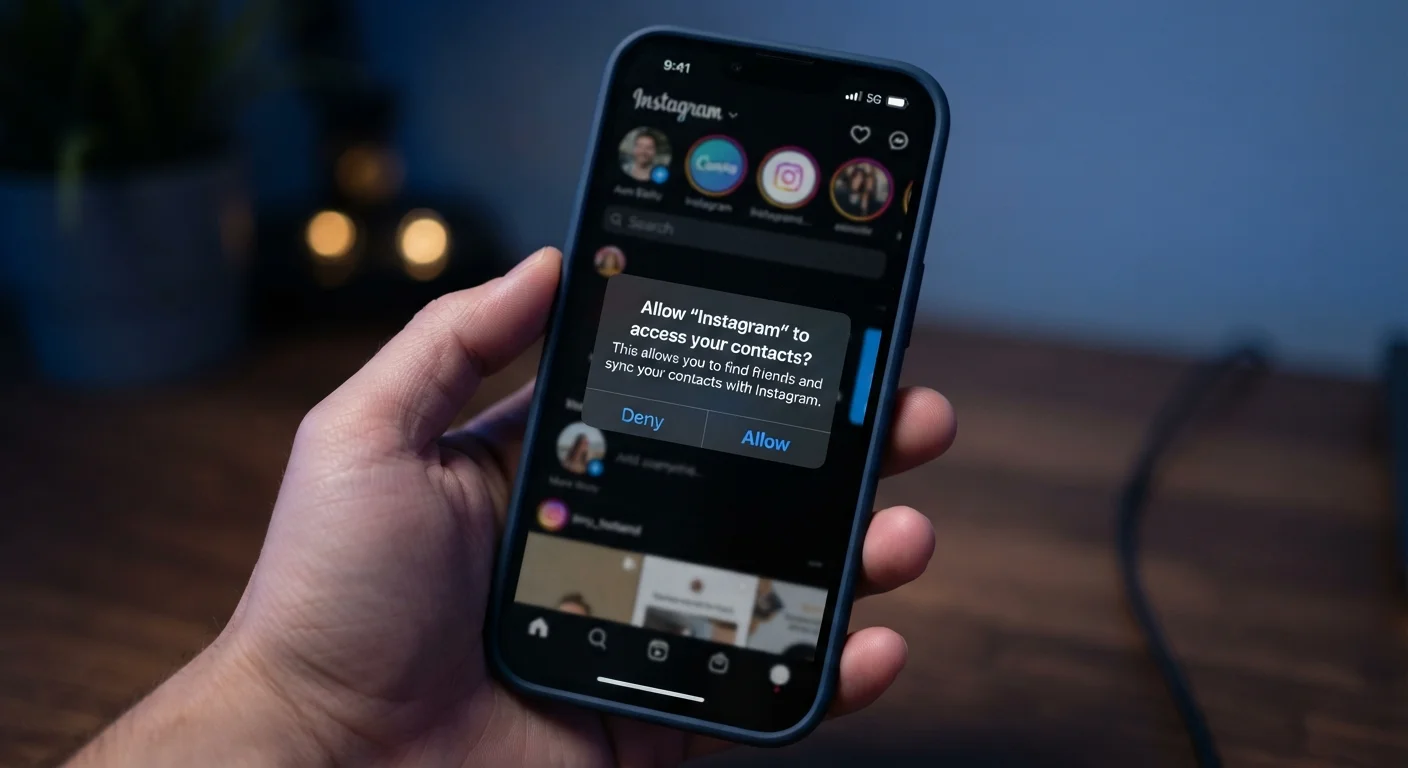
Photo: ShortwebArticles.com | Content For The Curious editorial
Key Takeaways
- Not every app permission request is justified — some access levels carry real privacy implications.
- Both Android and iOS let you review and revoke app permissions at any time in device settings.
- Location, microphone, and contact access are among the most sensitive permissions apps can request.
- Denying a permission often doesn't break an app's core function — test before assuming otherwise.
- Regularly auditing your installed apps and their permissions is a practical privacy habit.
Why App Permissions Deserve More Than a Quick Tap
When you install a new app, a series of permission prompts often follows. Most people tap "Allow" without a second thought — partly because the dialogs appear during setup excitement, and partly because the language can sound technical or vague. But each permission you grant is a genuine access handoff: the app can now reach that part of your phone until you revoke it.
Permissions are not inherently sinister. A navigation app genuinely needs your location. A messaging app reasonably needs the microphone for voice messages. The question worth asking is whether a given app's request makes sense given what it actually does. When the answer isn't obvious, that's the moment to pause.
Both Android and iOS now offer granular permission controls, including options to grant location access only while using an app, or to allow camera access just once. Understanding what each permission category covers — and why an app might want it — puts you in a much stronger position. If you're also thinking about privacy more broadly, reviewing your social media privacy settings is a natural companion step.
Location — precise vs. approximate
Location access is one of the most frequently requested and most privacy-sensitive permissions. It exists in tiers: precise location pinpoints you within a few meters, while approximate location gives a general area. Many apps that request precise location don't functionally need it — a weather app, for example, typically works fine with an approximate reading.
Beyond the tier, consider the timing. iOS and Android both offer "only while using the app" as an option, which prevents background location tracking. A flashlight app or a simple game requesting persistent location access is a red flag worth acting on.
A weather app works fine with approximate location — precise access is rarely necessary.
Microphone — always ask why
Microphone access makes obvious sense for voice and video call apps, dictation tools, or audio recorders. It makes much less sense for a recipe browser or a shopping list app. Because microphone access can theoretically capture ambient audio, it's worth being selective.
If you deny microphone access to an app and find that a core feature breaks, you can always re-enable it. But start with denial as your default for any app where audio isn't central to the product.
Start with denial for any app where audio isn't central to what it does.
Contacts — a gateway to others' data
Granting contacts access doesn't just expose your own information — it exposes data about every person in your address book, none of whom consented to share their details with that app. Messaging and calling apps may genuinely need this to help you find connections. But a productivity tool, game, or utility rarely does.
Some apps use contacts access to build social graphs or for marketing purposes. When in doubt, deny it and see whether the features you actually use still work. This connects to a broader point about how shared personal details carry real-world risk.
Granting contacts access exposes data about every person in your address book.
Camera — not just for photo apps
Camera permission is often bundled with obvious use cases: photo editing, QR scanning, video calling. But some apps request camera access with less clear justification. It's worth verifying the request fits the app's actual purpose before granting it.
Both major mobile platforms notify you with an indicator light or icon when the camera is actively in use. That said, the cleaner approach is to grant camera access only to apps where it's clearly part of the core function, and to revoke it from apps you rarely open.
Grant camera access only where it clearly fits the app's core function.
Financial app access — scrutinize what syncs
Budgeting and expense-tracking apps often request access to banking credentials or financial accounts via third-party aggregation services. While many of these tools are legitimate, the permission model is worth understanding: you're typically authorizing a third party to read account data on your behalf. If you're weighing whether an app is worth that access, understanding the trade-offs between manual tracking and app-based tracking can help you decide whether the convenience justifies the connection.
Check what data an app retains, how it's stored, and whether you can revoke the connection from within your bank's own authorized apps list — most major banks offer this under account or security settings.
Most major banks let you revoke third-party app access directly from your account settings.
Background app refresh and data access
Not always labeled as a "permission," background app refresh allows apps to update content and transmit data even when you're not actively using them. For email and maps this can be practical. For games or retail apps, it may simply mean the app is sending usage data or loading ads on your data plan.
You can disable background refresh on a per-app basis on both iOS and Android. Doing so can also improve battery life and reduce mobile data consumption, making it a worthwhile setting to review periodically.
Disabling background refresh for non-essential apps can reduce data use and improve battery life.
Building a Simple Permission-Review Habit
Auditing your permissions doesn't require technical expertise — it just requires knowing where to look. On iPhone, go to Settings → Privacy & Security to see which apps have requested access to each category. On Android, open Settings → Privacy → Permission Manager for a similar breakdown. Both views let you revoke access app by app.
Make Permission Audits a Quarterly Habit
A good rule of thumb: if you haven't opened an app in several months, check what permissions it still holds. Unused apps retaining microphone or location access in the background is an easy oversight to correct. For a broader look at how apps and connected devices handle your data, smart home device trade-offs offers useful context. And if anything on your device ever seems off after a permission change, signs your device may be compromised walks through warning signals worth knowing.
The content on this site is for informational purposes only and is not a substitute for professional advice. Always consult a qualified professional for guidance specific to your situation.