
Locking Down Your Home Wi-Fi Network

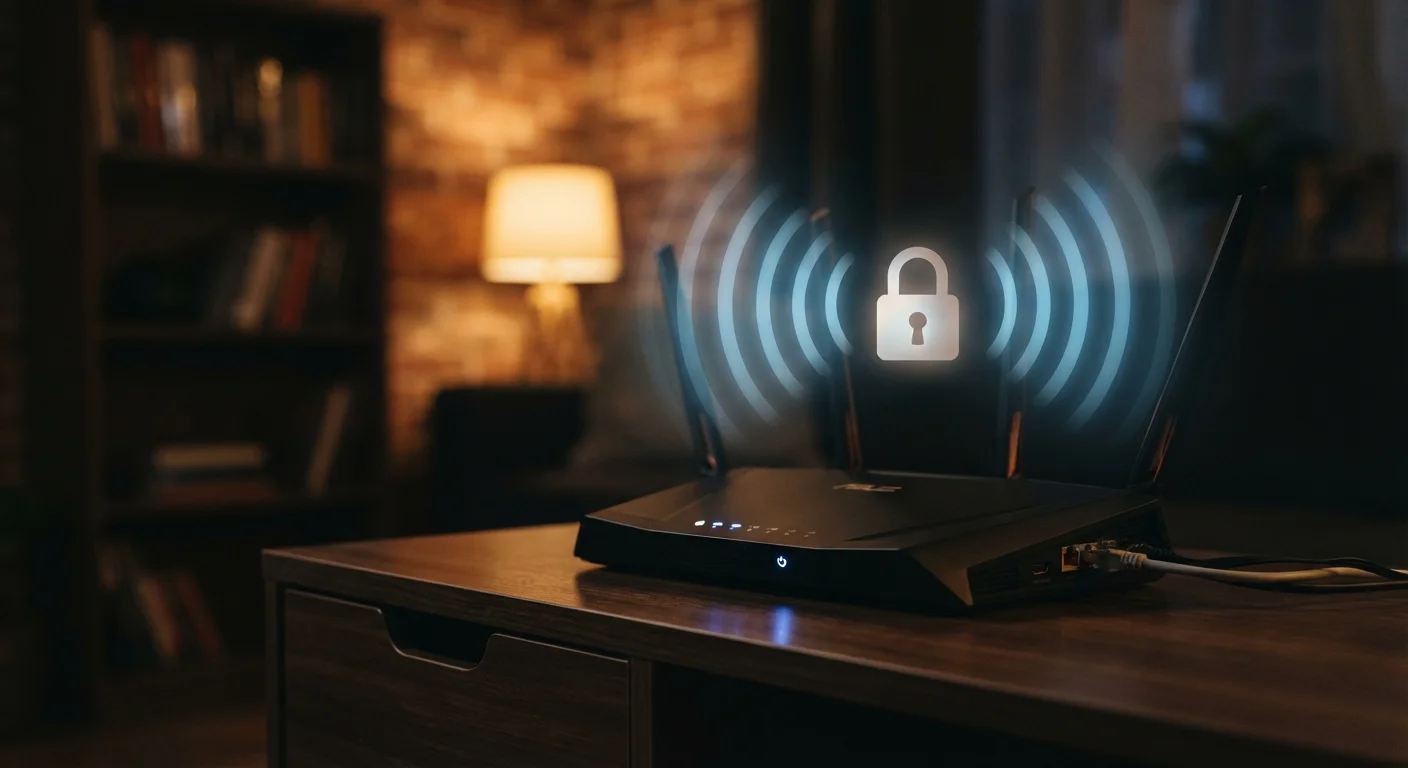
Photo: ShortwebArticles.com | Content For The Curious editorial
Key Takeaways
- Your router's default credentials are a well-known vulnerability — change them immediately.
- WPA3 or WPA2 encryption is the minimum acceptable security standard for home Wi-Fi.
- A guest network keeps visitors and smart-home devices isolated from your main network.
- Firmware updates patch security holes that attackers actively exploit.
- Disabling features you don't use — like WPS and remote management — reduces your attack surface.
Why Your Home Network Is Worth Securing
Your home Wi-Fi network is the gateway every device in your household uses to reach the internet — and each other. A poorly secured network can allow neighbors or passersby to consume your bandwidth, but more seriously, it can give attackers a foothold to intercept traffic, access connected devices, or even reach files stored on home computers or NAS drives.
The good news is that the most effective protections don't require technical expertise. They're mostly a matter of changing defaults, enabling the right settings, and keeping your hardware up to date. For a broader look at what affects your overall internet experience, see this end-to-end home internet guide.
What you will need
What You'll Need
Before you begin, gather what's required to access and configure your router. Most of the process takes place inside a browser-based admin panel — no special software needed.
Router Admin Panel
The browser-based interface where all security settings — passwords, encryption, firmware — are configured.
Password Manager
Helps you generate and store a strong, unique admin password and Wi-Fi passphrase without having to remember them.
Router Manufacturer's Support Page
Used to find your specific model's firmware update instructions and default login details.
Step-by-Step: Securing Your Router
Work through each step in order. The first two steps — changing admin credentials and updating your Wi-Fi password — should be treated as urgent if you've never done them before.
Never Skip the Admin Password Change
Access your router's admin panel
Open a browser on a device connected to your home network and type your router's IP address into the address bar. Common addresses include 192.168.0.1 or 192.168.1.1. If neither works, check the sticker on the back or bottom of your router, or consult the manufacturer's documentation.
Log in with the current admin credentials. If you've never changed them, they're likely printed on the router itself.
Change the admin username and password
Navigate to the administration or management section of your router's settings. Replace the default username (often 'admin') and create a strong, unique password — at least 12 characters mixing letters, numbers, and symbols. This password protects the control panel itself, not your Wi-Fi connection.
Set a strong Wi-Fi password and rename your network
In the wireless settings section, update your network name (SSID) to something that doesn't identify you or your address. Then set a new Wi-Fi passphrase — aim for at least 12 characters that aren't a dictionary word or phrase. This is what guests and devices use to join your network.
Enable WPA3 or WPA2 encryption
Still in your wireless settings, locate the security mode or encryption type option. Select WPA3 if your router supports it. If not, WPA2-AES is the next best choice. Avoid any setting labeled WEP, WPA (without a version number), or TKIP — these are outdated and insecure.
Update your router's firmware
Firmware is the software running on your router. Manufacturers release updates to fix security vulnerabilities. Look for a 'Firmware Update' or 'Router Update' option in your admin panel — many routers can check for updates automatically. If yours doesn't, visit the manufacturer's support page and search for your model number.
Set up a guest network
A guest network is a separate Wi-Fi network running on the same router, isolated from your primary network. Enable it in your router's wireless settings and give it its own strong password. Connect visitors and smart-home devices (TVs, thermostats, cameras) to the guest network — this keeps them separated from computers or phones that hold sensitive data.
Disable unused features: WPS and remote management
WPS (Wi-Fi Protected Setup) lets devices join a network via a PIN or button press, but it has known security weaknesses. Unless you actively use it, disable it in your wireless settings. Similarly, remote management allows access to your router's admin panel from outside your home — turn this off unless you have a specific need for it.
Name Your Network Wisely
Keeping Your Network Secure Over Time
Locking down your router is a starting point, not a one-time fix. A few ongoing habits make a meaningful difference:
- Check for firmware updates periodically if your router doesn't update automatically. See why keeping software current matters for more context on why this step carries real weight.
- Review connected devices in your router's admin panel occasionally. An unfamiliar device could indicate an unauthorized connection.
- Change your Wi-Fi password if you've shared it widely or if a device is lost or stolen.
If your household has coverage or performance challenges alongside security concerns, it's worth reading about what mesh Wi-Fi systems offer and where they fall short before making any hardware changes. For a deeper look at what distinguishes meaningful security habits from security theater, see this evidence-based overview of home network security.
WEP and WPA Are No Longer Safe
The content on this site is for informational purposes only and is not a substitute for professional advice. Always consult a qualified professional for guidance specific to your situation.